Step 1 Log into the Clarity Portal
Log into the Clarity Portal
Go to the Clarity Portal login page, enter your Clarity username and password, and select Login
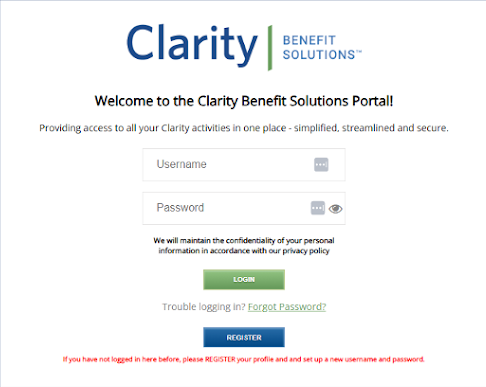

Go to the Clarity Portal login page, enter your Clarity username and password, and select Login
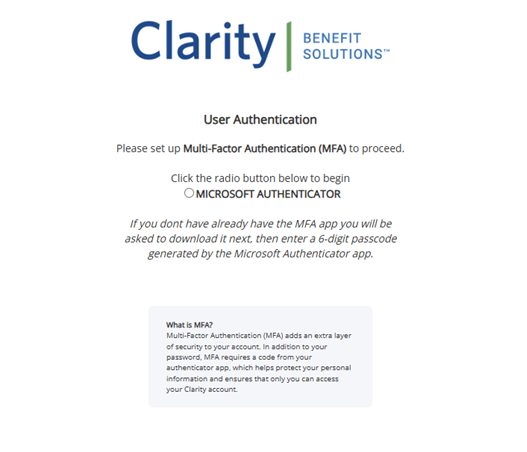
On the next screen, choose Microsoft Authenticator as your verification method and click Submit to begin setup.
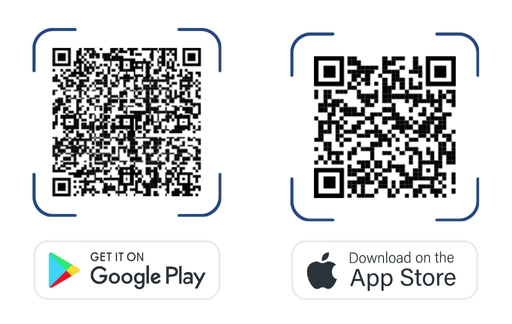
If you don’t already have the app, install it now. If you already use it, you can skip this step.
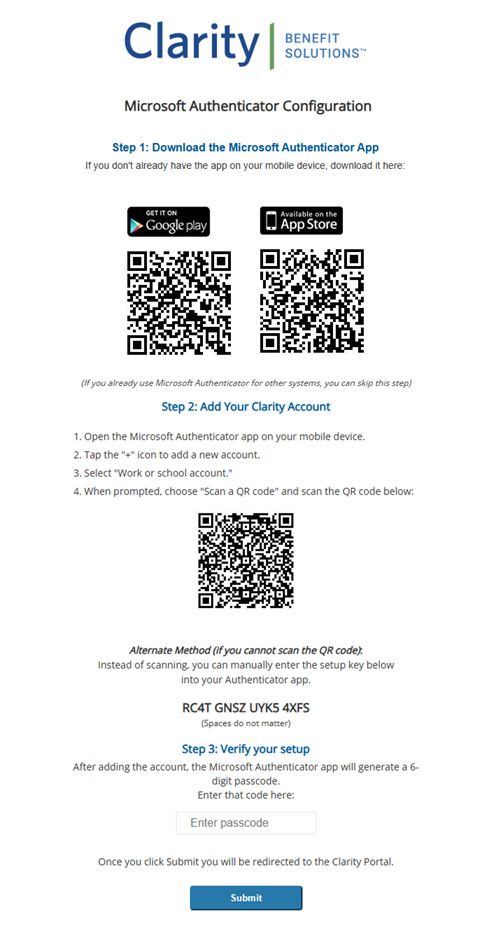
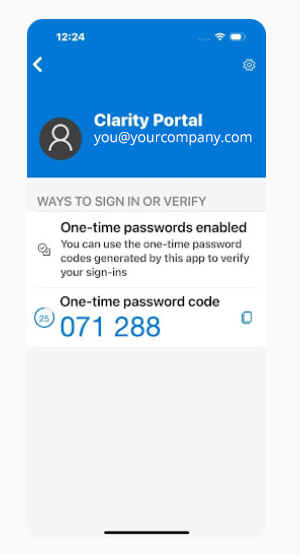
After adding your Clarity account, the Authenticator app will generate a 6-digit code. Enter this code into the Clarity Portal setup screen. That’s it — you’re now protected with MFA.